

How To Access Your CVS Paystub
 By
By
You can access your CVS paystub online through Colleague Zone, Workday, or the CVS Alumni Zone, depending on whether you are a current or former employee. You will need your employee ID and password to log in. If you no longer work at CVS, you may receive temporary login credentials through email or may need to contact HR for access.
These pay stubs are important to CVS employees, as they give a breakdown of their earnings, deductions and taxes each pay period. It can be used for tax filing, proof of income, loan applications, or personal records. Timely and accurate paystub access ensures employees can manage their finances, file taxes, and resolve payment issues quickly. Some workers make paystub records from their actual pay to keep a personal history of their earnings.
This article will cover everything you need to know about how CVS's current and former employees can access their pay stubs. You will also learn what your stub contains and how to resolve common login issues.
Understanding Your CVS Paystub
A CVS paystub is a detailed breakdown of your gross and net pay for a particular pay period. It helps you understand your pay, deductions and taxes applied to your earnings while working at CVS.
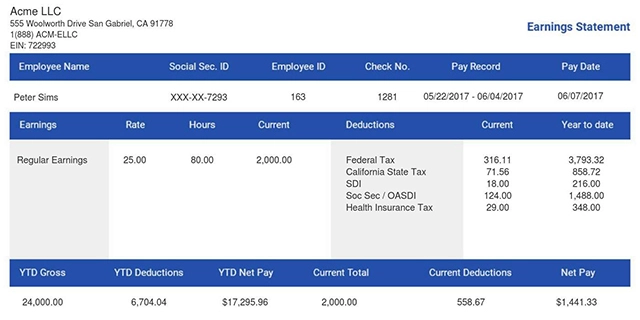
Your CVS pay stub contains a lot of information. Below is a breakdown of what you will find on your stub:
Employer and Employee Information
They are usually located at the top of your pay stub. This information includes:
-
Your name
-
ID number
-
The last four digits of your Social Security Number
-
Address
-
Filing status (sometimes shown)
-
Your employer's name and address
You will also find the pay period information at the top of your pay stub. This indicates the start and end dates of the period you want to view on your CVS pay stub. It also shows the date you are paid.
Earning Section
This section shows details about your earnings. It includes your gross pay, which is the total amount you earned within the pay period before taxes and deductions.
Your earnings include:
-
Regular hourly or salary pay
-
Overtime earnings (if applicable)
-
Bonuses or incentives
-
Commissions
Taxes and Deductions Section
This part lists all the amounts that are withheld from your CVS paycheck for taxes. It includes both pre-tax and post-tax deductions, such as:
-
Federal and state income tax
-
Social Security and employee Medicare tax (FICA)
-
Health insurance premiums
-
Retirement plan contributions
-
Other additional benefits withholding.
Net Pay
Your net pay is the final amount you receive after taxes and deductions are subtracted. This is the amount usually deposited into your bank account or issued as a paycheck.
Year-To-Date(YTD) Totals
This final section shows cumulative totals from the beginning of the year through the current pay period. You’ll see:
-
Total gross earnings for the year
-
Total taxes and deductions withheld
-
Total net pay received so far
Now that you know what information is included in your CVS pay stub, let’s look at how you can access your pay stub online as a current or former employee.
Accessing CVS Paystub for Current Employees and Minute Clinic Colleagues
Once you know the correct website to log into, accessing your CVS pay stub is simple. CVS employees can use several login pages. However, this depends on their specific role and work location.
Note that access may look slightly different for different job positions.
The main portals include:
-
Colleague Zone CVS login (redirects to Workday)
-
CVS Workday portal
-
Enterprise Login page
The MyHR Colleague Zone CVS login paystub is no longer active for current employees. Retail store and MinuteClinic colleagues usually use the Enterprise Login page and the Workday CVS login to see their pay information. Below are the steps to access your pay stub as a current CVS employee:
1. Sign In to the Correct CVS Portal
You can visit the Colleague Zone or the Workday login page. Log in using your employee or contractor ID and password.
Some employees may log in using their CVS network username or email address instead. Complete verification steps if required. This may include two-factor authentication.
There are also other convenient ways for a user to access the paystub portal. These ways include:
-
The login icon on the CVS employee website
-
The HR portal
-
A link through myReports
2. Go to the Pay or Payroll Section
After logging in, your dashboard will display several menu options. Look for sections labeled “Pay,” “Payroll,” “My Pay,” “Earnings,” or “Compensation & Benefits.” These areas contain all your pay-related documents.
Pay stubs appear in date order. Your most recent pay period will always be at the top. Click the pay statement you want to open.
3. Download or Print Your Pay Stubs
When you select a pay period, your pay stub will open as a PDF. From here, you can download the PDF to your device. You can also print a copy for personal or tax purposes.
To stay organized, consider saving your pay stubs regularly in a folder on your computer or cloud storage. This can ensure you continue to have backup copies, even if you later lose access to the portal.
Furthermore, you can update your payroll preferences once you have access to the site. You can change several payroll settings, including:
-
Direct deposit information to ensure your paycheck reaches the correct bank account
-
Contact details, such as your phone number and email
-
Tax forms, including your annual W-2 form.
Alternatively, you can generate your pay stubs instantly with our 123 Paystub process. It is fast, reliable and perfect for creating your pay records.
Accessing CVS Pay Stubs as a Former Employee
When you are no longer a CVS employee, you may not be able to log in to the Workday CVS portal. However, you can still access your CVS pay stubs.
Former employees can now access their pay information through the CVS Alumni Zone homepage. This is where you get redirected to from the www.myhr.cvs.com payroll login page. It is designed specifically for former employees.
You will be sent two automated emails within 24-48 hours after you stop working at CVS Health. These emails are from the Colleague Zone and are sent to your personal email address. One email contains your username, while the other contains your temporary password.
You will be given directions in the email to visit the portal, access your pay stubs, and set up your passwords. Follow the instructions to continue accessing your pay stubs after leaving the company.
However, if you do not receive the emails within the expected timeframe or have issues with the credentials, you can contact the CVS HR Service Center. Contact details may change; hence, ensure you verify that they are accurate.
If this still doesn't work, then you can also contact the CVS HR to request copies of your previous pay stubs. You may need to send your employee details, such as your name, employee ID, last four digits of your SSN, and dates of employment. Your paystubs will be sent to your email address after your information is verified.
Common Issues Logging Into CVS Health Paystubs and How To Fix Them

Sometimes, CVS employees may experience issues when accessing their pay stubs. When this happens, there are several ways to solve the problem. Below are some common issues and their solutions:
Forgotten Login Details
If you forget your CVS paystub password, you can reset it directly on the login page by selecting "Forgot Password." You will need to enter your employee ID or email address linked to your account to receive a reset link.
If you no longer have access to your email or the link doesn’t work, contact the CVS Customer Care at 1-888-607-4CVS (4287). They can help you regain access to your pay stub account.
Error Messages for Inputting Invalid Login Details
You may get an error message if you input the wrong password too many times. This can temporarily lock your account. If this happens, wait 15–30 minutes before trying again, or contact CVS support to unlock your account.
Missing Paystubs
Another issue is missing recent pay stubs. New CVS pay stubs are usually posted 1–2 business days before payday. If your paystub is missing, verify dates and amounts agree with your payroll schedule.
Also, if your CVS paycheck stub doesn’t appear, check the payroll calendar for holidays or delays. If there is none, reach out to the payroll support for help.
If technical problems persist, Minute Clinic colleagues and retail store employees can call 1-866-528-7272 for assistance. However, corporate employees can use 1-855-280-4872. Always verify numbers through Workday HR resources.
The Bottom Line
Accessing your CVS pay stub is straightforward for both current and former employees. You can easily access your CVS paystub with the right sites and your employee information. Remember to keep your login credentials secure. Also, update your account information when necessary. Regularly reviewing your paystubs can ensure accuracy in earnings, deductions, and benefits. If you encounter login issues, CVS HR or payroll support is available to assist. Switched employers? Learn how to get a pay stub from any employer.
Need to generate accurate and professional paystubs or manage your employee paystubs? Use our paystub generator to create accurate, downloadable paystubs in minutes.
You Might Also Like
- How To Get Your DG Paystub in 2026 (DGME Portal Guide)
- How To View, Download & Print Your Kroger Paystub (2026 Guide)
- Lowes Pay Stub Portal: How To Obtain Your Pay Stubs and W-2 Form (2026)
- Proof of Income Documents: 6 Instances You'll Need a Pay Stub
- Self-Employed? Here's How to Show Proof of Income
- 1. Enter Your Information

- 2. Select Your Favorite Theme

- 3. Download Your Stub!

 By
By